Skip to Content

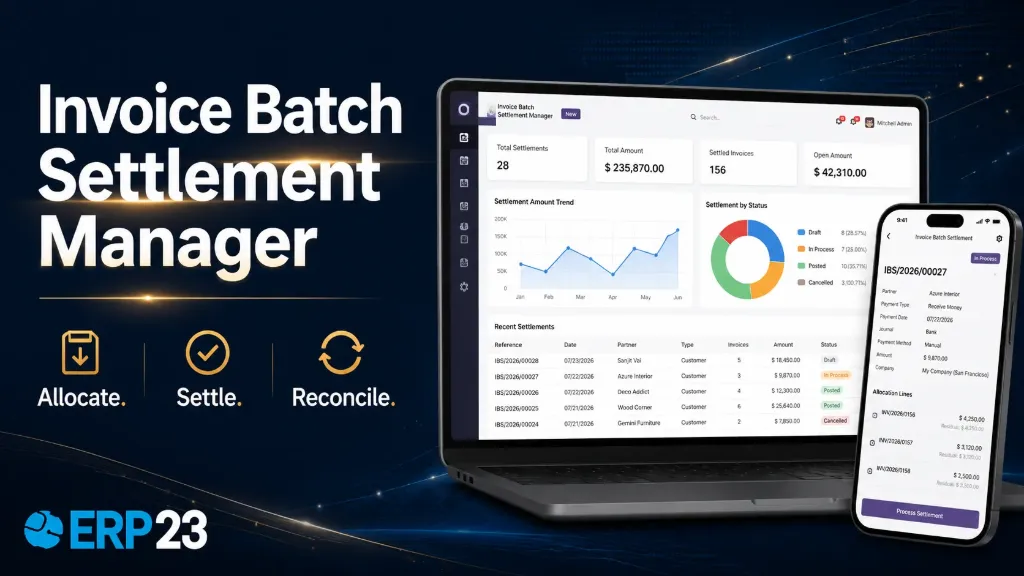
Invoice Batch Settlement Manager

FREE
$ 5.99 $ 5.99

  • ​Versions
Terms and Conditions
30-day money-back guarantee
Shipping: 2-3 Business Days

Key Features

Customer and Vendor Settlements:
Process multiple posted customer invoices or vendor bills from a single batch settlement.
Native Odoo Payments:
Create one standard account.payment record for every allocation line, preserving familiar accounting behavior.
Automatic Posting and Reconciliation:
Post generated payments and reconcile them automatically with their assigned invoices or bills.
Full and Partial Payments:
Allocate either the complete residual amount or a smaller valid amount for partial settlement.
Live Validation:
Validate residual balances, currencies, companies, invoice states, and payment direction before processing.
Duplicate Protection:
Prevent the same invoice or bill from being added more than once to the same settlement batch.
Safe Retry Processing:
Idempotent processing prevents duplicate payments when a batch is retried after interruption.
Complete Audit Trail:
Review generated payments directly from the settlement and navigate back to the source batch from each payment.

Description

How It Works

1. Choose the Partner:
Select a customer for incoming settlements or a vendor for outgoing settlements.
2. Configure Payment Settings:
Select the payment date, journal, payment method, currency, and memo.
3. Add Allocation Lines:
Add eligible posted invoices or bills and enter the amount to settle for each document.
4. Process the Batch:
Click Process to create, post, and reconcile the payments, then review the generated payment records.

Step-by-Step Workflow

Follow the complete workflow below, from opening the module to confirming the paid invoices.

1. Start the Module

Open the module from the Odoo dashboard to begin the settlement workflow.

2. Create Customer Invoices

Create the customer invoices that will later be settled together.

3. Complete the Invoice Details

Enter the partner, invoice lines, amounts, and other required information, then confirm the invoice.

4. Review Unpaid Invoices

Review the posted invoices that are currently awaiting payment.

5. Open Invoice Batch Settlements

Use the Pay by Batch option to start one settlement for multiple invoices.

6. Create a Batch Settlement

The batch settlement form brings the payment configuration and invoice allocations together.

7. Enter Settlement Information

Select the customer, date, journal, payment method, currency, and other settlement details.

8. Add Eligible Invoices

Click Add a line to select from only the eligible open invoices for the chosen customer.

9. Process the Batch

Click Process to create, post, and reconcile all payments included in the settlement.

10. View Generated Payments

Open the Payments smart button to review every standard Odoo payment created by the batch.

11. Review Payment Details

Inspect the generated payment records and their clear, traceable settlement information.

12. Confirm Invoices Are Paid

Return to the invoice list to confirm that the reconciled invoices are now in the Paid state.

Technical Safeguards

Company Isolation:
Record rules restrict settlement visibility according to each user's allowed companies.
Residual Protection:
Live residual values are checked again during processing to prevent stale or excessive allocations.
Currency and Direction Checks:
Only compatible invoice, journal, currency, company, and inbound/outbound combinations can be processed.
Controlled Access:
Billing users and accountants can operate settlements, while deletion remains limited to Accounting Managers


​Versions ​18.0, ​19.0